Long Live SharePoint Rules
SharePoint alerts are set to stop working in July 2026. Learn how you can use SharePoint rules instead.
In the past, when a user wanted to get a simple notification that an item in a SharePoint list or library had been modified, they would create a SharePoint Alert. Fast forward to today, and Alerts are officially end of life and will fully stop working in July 2026. Microsoft recommends users move to Power Automate for all their automation needs, but if a simple notification is all you need, then SharePoint Rules might be a better fit.
What are SharePoint Rules
SharePoint rules allow you to send an email when an item changes or is created in a list or library. The benefit of using a rule instead of creating a Power Automate flow is:
- Rules can be built right from the SharePoint list or library UI
- You don’t need to write any code (not even drag-and-drop) to create a rule
- Rules can be created and modified by anyone with Contribute access or higher to the list or library
- Rules are simple to read and understand
Creating a SharePoint Rule
Let’s create a rule in a document library that runs when an item is modified.
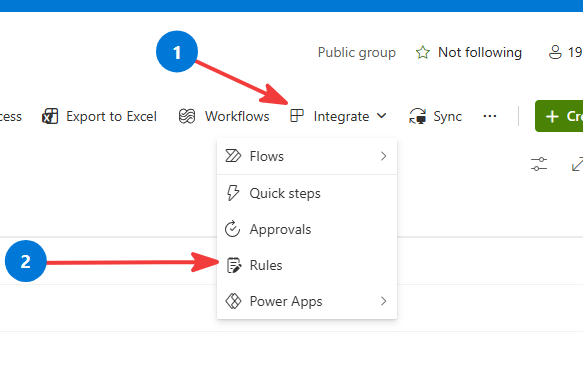
Navigate to your library and click on Integrate > Rules
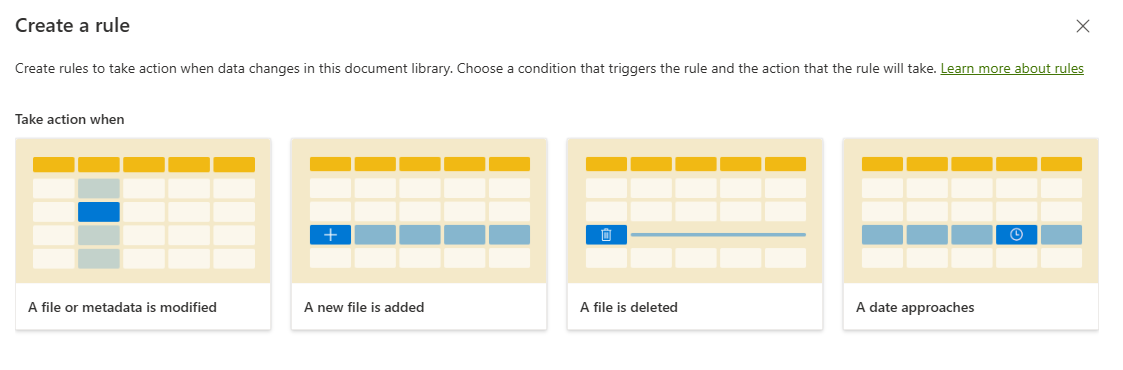
We need to define a trigger action. In our example, we are going to fire this rule anytime an item in our library is modified. So we will select A file or metadata is modified
Now we will define the conditions and actions of the rule. The rule is written in plain text, so it is easy to understand.
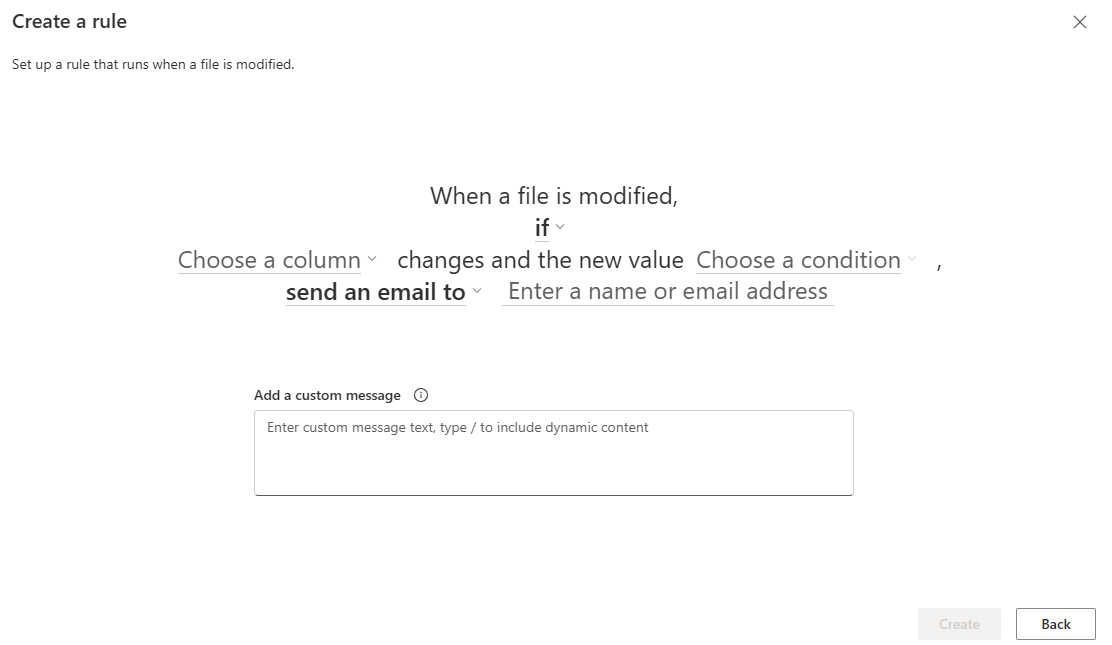
For our example, we want the rule to fire anytime an item is modified. Click on the if drop-down and set it to always. We are going to leave the send an email action alone, but if you click on it, you can see you have a few options such as moving or copying the file. For now, we just want it to send us an email. That brings us to our final step, which is who to send the email to. If you click on the field, you will get a number of suggestions such as sending the email to the person who modified or created the item. The option we are going to pick is Me. This will send the email to you.
Your final rule should look like this.
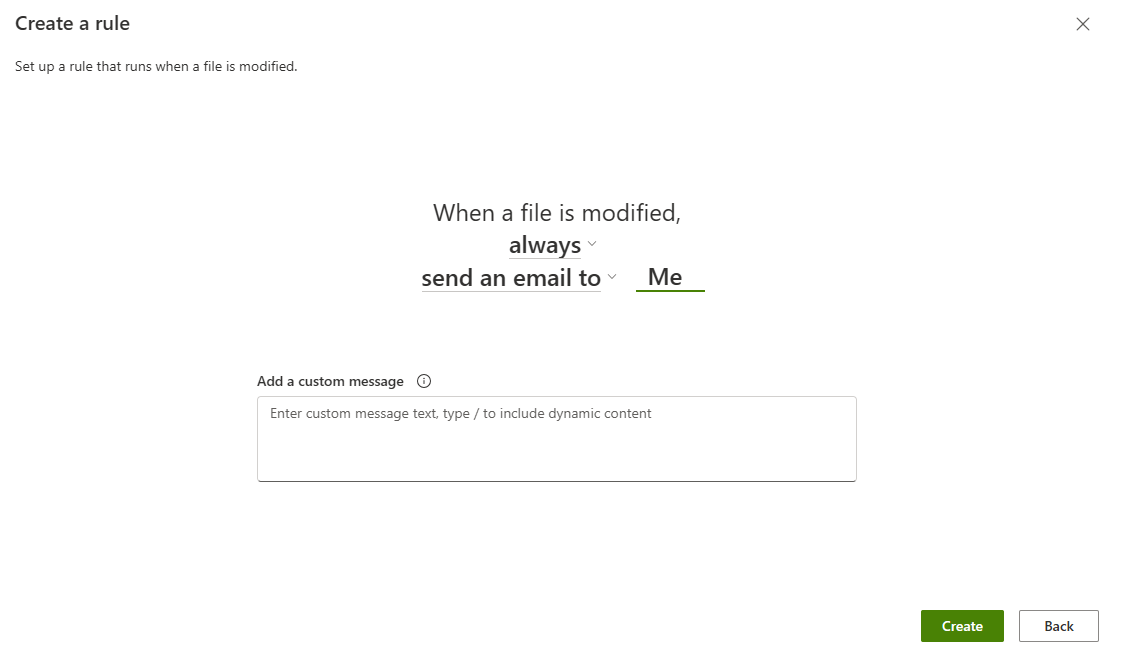
There is a spot to add additional text to your email notification if you would like, but it is optional.
Click on Create and your rule is now active and ready to notify you.
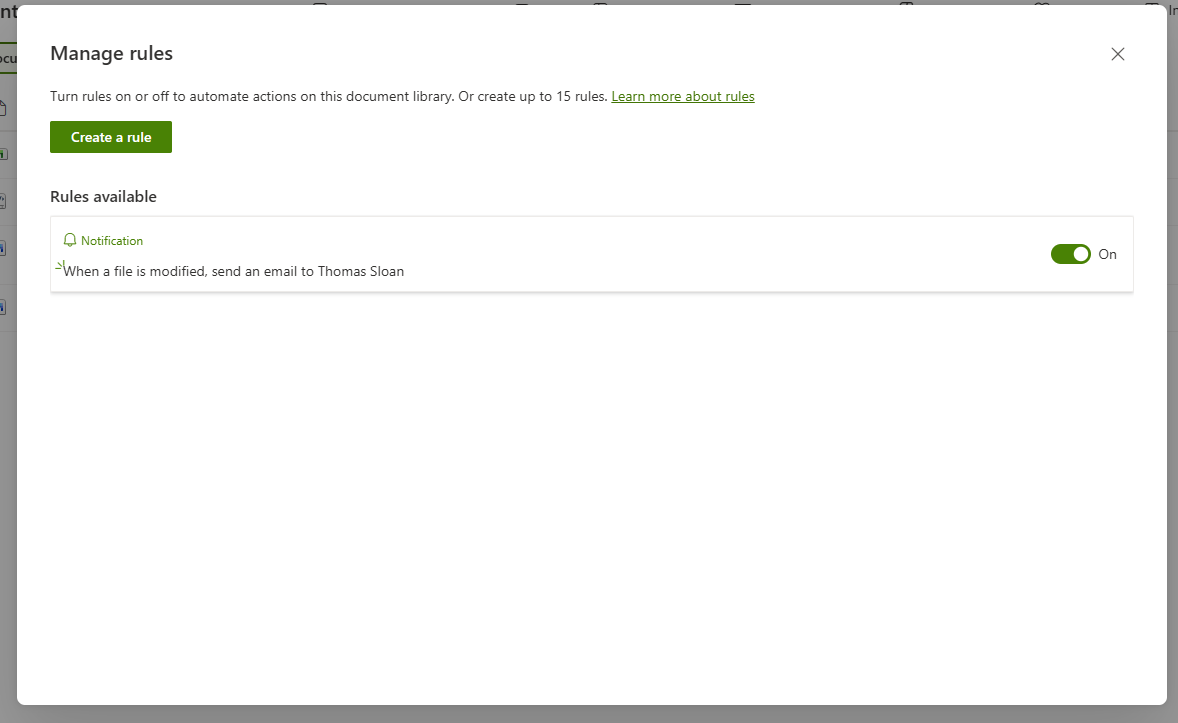
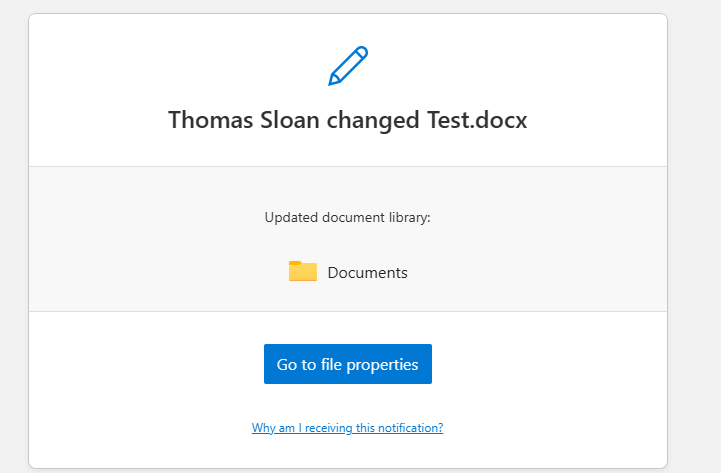
Now if I update a document in my library where the rule is active, I get an email notification.