Automate with SharePoint Rules
SharePoint rules can easily replace alerts and send you notifications. Did you also know that they can move and copy files as well?
In a previous post, “Long Live SharePoint Rules”, we saw how you can use SharePoint rules to alert you when an item is modified. In that example, we just had the rule send us an email, but rules can do more than just email you. In this post, we’ll look at how you can use rules to copy or move files.
Copy and Move Actions
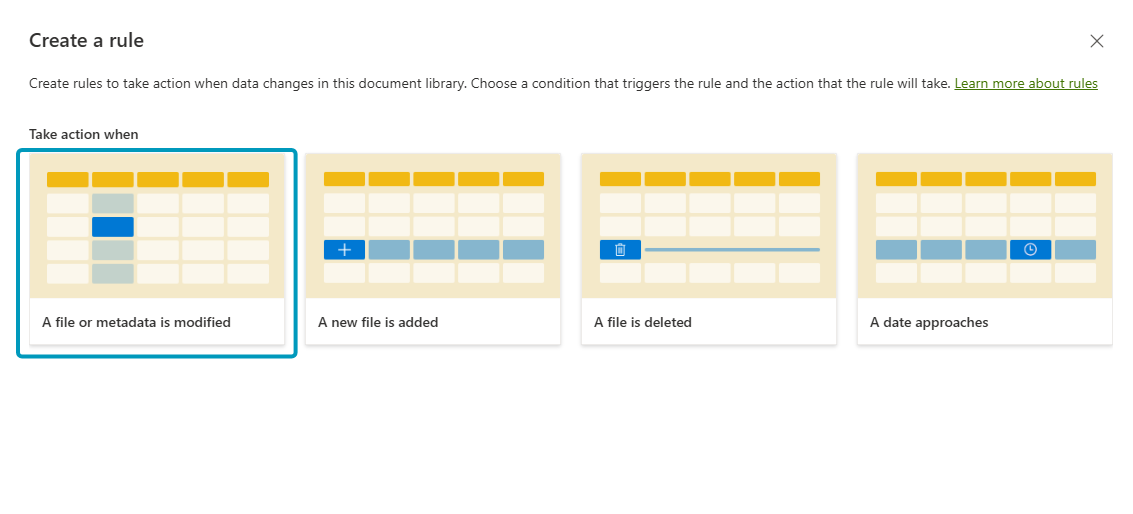
Let’s start by creating a rule just like we did before and configuring it to take action when A file or metadata is modified.
In the rule actions, we are going to leave the if statement this time. Then we are going to pick the column that we want the rule to monitor. In our case, it is the Tags column. Next, we want to watch the column for changes and fire when the Tags column contains the tag Work. Finally, the rule should copy file to a SharePoint site called Teams Site and into the Documents library.
SharePoint rules only allow you to copy or move a file to a library and not to a folder inside a library
When you are done, your rule should look something like this.
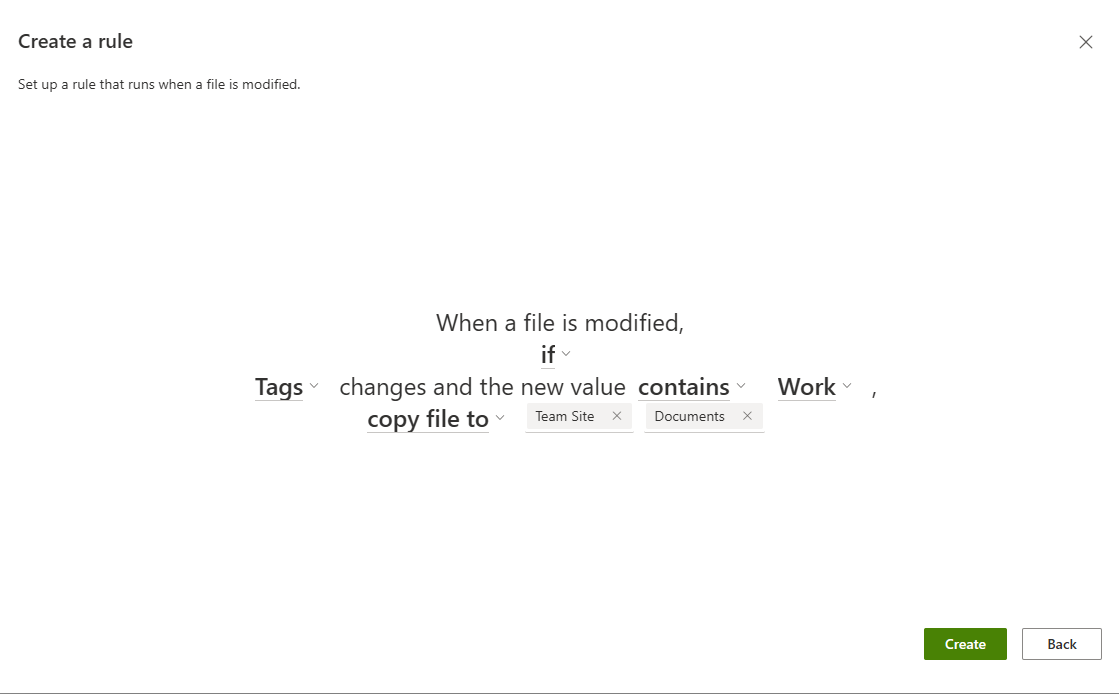
Click on Create and your new rule is now active and ready to go.
Test the rule by selecting a file in your library and adding or removing a tag in the Tags column. Just make sure you have the tag Work applied as one of the tags. The rule will detect a change to the item and look at the item’s Tags. As long as the tag Work is one of the tags applied to the item, it will copy the file to the Documents library on the Teams Site (or whichever site and library you specified).
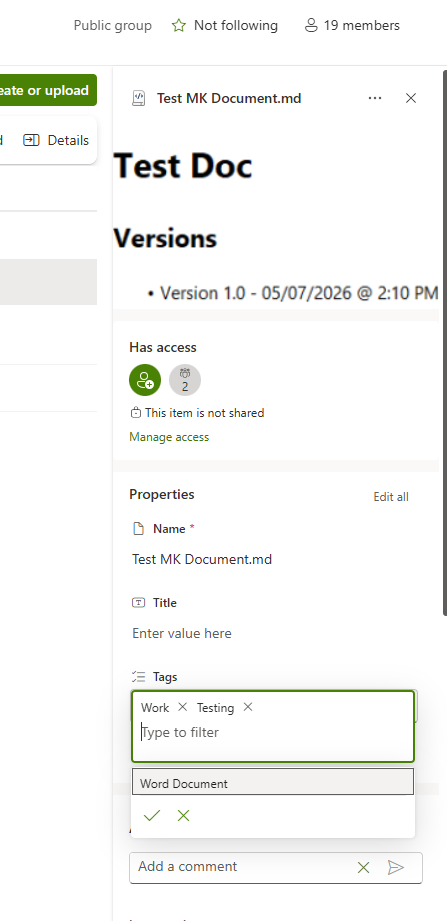 Make sure your tag is applied. In our case, the “Work” tag is one of the applied tags for this item.
That’s it. You now have a rule that copies a file to a library on another site whenever the tags are updated. You can even have the rule copy the file to another library on the same site if you want.
There are a few things to keep in mind:
- You can’t have a rule that performs more than one action, like copying a file and then emailing you.
- You can’t evaluate more than one column in the list. So you can’t check if the Tags column contains “Work” AND the Title is “New Work Policy”.
Remember, rules are meant to be simple. If you need more complex conditions or want to perform multiple actions, then Power Automate is what you want.