Automate Your Outlook Out of Office

Use Power Automate to automatically schedule your Outlook Out of Office whenever it detects an upcoming Out of Office appointment on your calendar.
In most workplaces, if you plan to be out of office, you need to remember to turn on your Outlook Out of Office replies. This feature automatically replies to anyone who emails you with a message letting them know you’re away. You can customize the message, set start and end times for the replies, and specify whether to send replies to internal recipients only or to external recipients as well.
I always seemed to forget to turn mine on. While I can enable it using my smartphone, the process isn’t very intuitive. So, I decided to automate turning it on because, honestly, what is automation for if not to do things for you?
The Flow
This automation is easy to set up and takes just a few minutes. We’ll build a Power Automate flow triggered when it detects a calendar event starting in 30 minutes. It will check if the event is marked as “out of office” and, if so, schedule your Out of Office replies to start and end with the event.
Trigger
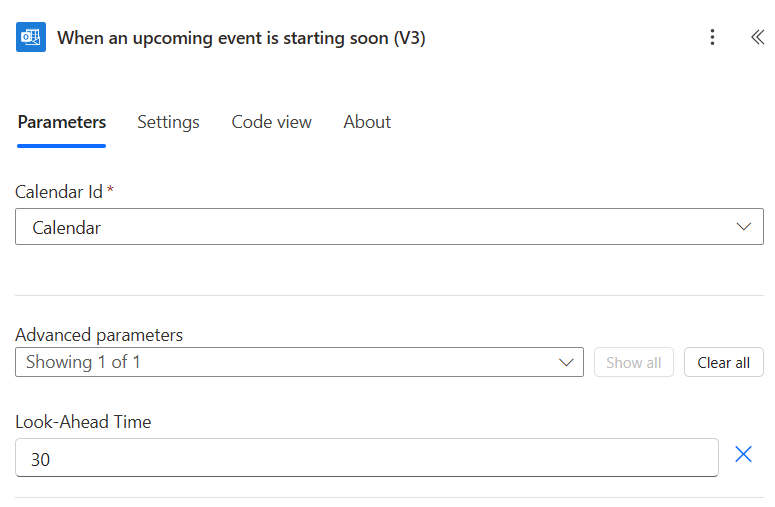
Start by creating a new flow with the trigger When an upcoming event is starting soon. This trigger polls your calendar every minute for events starting soon. You can configure how far ahead it looks; I have mine set to detect events starting in 30 minutes.
Actions
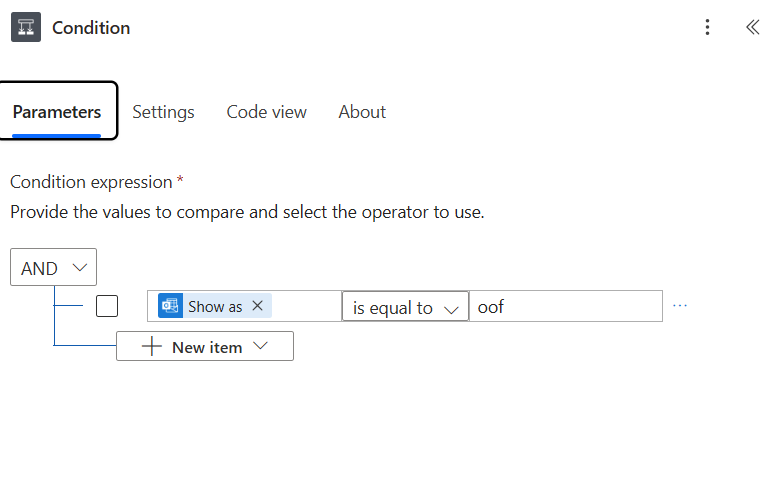
For your first action, add a condition. This will check the event’s “Show As” field. If it is “oof” (out of office), the flow will turn on your Out of Office replies. If it shows anything else, the flow ignores the event.
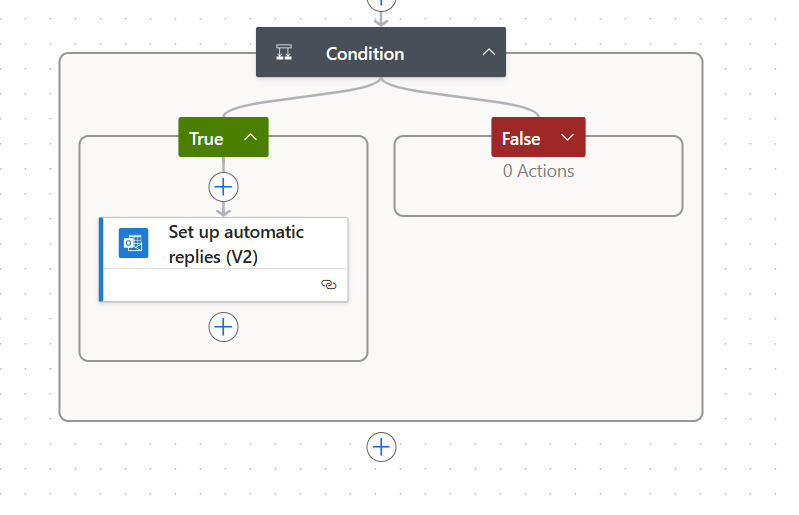
Add the Set up automatic replies action to the True branch of the condition.
Set the action’s parameters as follows:
- Status: “Scheduled” - This way the replies are only sent out between the start and end times. Outlook takes care of turning them off once the end time is reached.
- External Audience: “None” - This means replies will only be sent to internal recipients.
Under Advanced Parameters, set the following using dynamic content:
- Start Time DateTime: Set to Start time from the trigger
- End Time DateTime: Set to End time from the trigger
That’s it! Now, whenever you add an event to your calendar marked as “out of office,” this flow will automatically schedule your Outlook Out of Office replies for the event duration.